Configure thinkcell Assist
- Home
- Resources
- User manual
- Deployment guide
- Configure thinkcell Assist
Connect MCP servers to thinkcell Assist
As an administrator, you can connect your organization's data sources, tools, and workflows to thinkcell Assist via Model Context Protocol (MCP) servers (see Understanding MCP servers). For example, you can connect MCP servers that let Assist work with data in an internal knowledge base.
thinkcell supports the following authentication methods for MCP servers:
- API key
- OAuth 2.0 authorization code grant with user sign-in
- OAuth 2.0 client credentials grant with a private-key JWT
- OAuth 2.0 client credentials grant with a client secret
Public servers do not require authentication.
You can configure MCP server connections per machine. Per-machine configuration gives you the flexibility to make a server available only to the users who need it—for example, you can ensure that a server with financial data is only available to the finance team.
Prerequisites
Before adding an MCP server to thinkcell Assist, make sure that you have completed the necessary prerequisites:
Configure CORS for your MCP server
Because thinkcell Assist connects to MCP servers from a browser, servers must use Cross-Origin Resource Sharing (CORS) to permit cross-origin requests from Assist. If an MCP server already permits these requests—for example, by allowing all origins—and includes the required CORS response headers, no further configuration is needed.
URLs that require CORS configuration
Use the following table to check which URLs require CORS configuration.
|
URL |
Who can configure it |
Required |
|---|---|---|
|
MCP server's URL |
MCP server administrator |
Always |
|
MCP server's protected resource metadata URL This URL usually contains the well-known URI string |
MCP server administrator |
If the MCP server publishes this URL |
|
Authorization server's metadata URL This URL usually contains the well-known URI string |
Authorization server administrator |
If the MCP server uses an OAuth authentication method |
|
Authorization server's token endpoint This URL is the |
Authorization server administrator |
If the MCP server uses the OAuth client credentials grant with a private-key JWT or client secret |
|
URL |
Who can configure it |
Required |
|---|---|---|
|
MCP server's URL |
MCP server administrator |
Always |
|
MCP server's protected resource metadata URL This URL usually contains the well-known URI string |
MCP server administrator |
If the MCP server publishes this URL |
|
Authorization server's metadata URL This URL usually contains the well-known URI string |
Authorization server administrator |
If the MCP server uses an OAuth authentication method |
|
Authorization server's token endpoint This URL is the |
Authorization server administrator |
If the MCP server uses the OAuth client credentials grant with a private-key JWT or client secret |
CORS response headers
Every response that an MCP server or authorization server sends to thinkcell Assist must carry the following CORS response headers. Ensure that these headers are configured for preflight (OPTIONS) responses, actual responses, and error responses such as 401 Unauthorized, 403 Forbidden, and 404 Not Found.
|
Header name |
Header value |
Required |
|---|---|---|
|
|
|
Always |
|
|
|
Always |
|
|
|
Always |
|
|
If the MCP server requires authentication |
|
|
|
Optional. If the MCP server doesn't allow this header, Assist retries the request without it. |
|
|
|
Always |
|
|
Additional headers that you configure in Headers (see Windows) or via |
If you add additional headers to the MCP server's thinkcell configuration |
|
|
|
|
If the MCP server returns an |
|
Header name |
Header value |
Required |
|---|---|---|
|
|
|
Always |
|
|
|
Always |
|
|
|
Always |
|
|
If the MCP server requires authentication |
|
|
|
Optional. If the MCP server doesn't allow this header, Assist retries the request without it. |
|
|
|
Always |
|
|
Additional headers that you configure in Headers (see Windows) or via |
If you add additional headers to the MCP server's thinkcell configuration |
|
|
|
|
If the MCP server returns an |
OAuth with user sign-in: Allow the redirect URI
For the OAuth 2.0 authorization code grant with user sign-in, thinkcell uses a localhost redirect URI to receive the authorization response. If the MCP server uses OAuth with user sign-in, the authorization server administrator must configure the OAuth client registration to allow redirects to http://localhost:PORT/auth with variable port numbers (see RFC 9700, section 4.1.3).
Add MCP servers to thinkcell Assist
To add MCP servers to thinkcell Assist, use the following configuration parameters.
On Windows, you can add MCP servers to thinkcell Assist using Group policies.
- Open the group policy setting think-cell Assist: MCP Servers.
- Select Enabled.
- For each server that you want to add, specify the following:
- Name: Enter a name for the server.
- URL: Enter the server's URL.
- Headers (optional): Enter any required HTTP headers as a JSON object. In the server's CORS configuration, add these headers to
Access-Control-Allow-Headers(see Configure CORS for your MCP server). - Authentication: Select the server's authentication method.
- None: The server doesn't require authentication.
- API Key
- OAuth: OAuth 2.0 authorization code grant with user sign-in
- Private Key: OAuth 2.0 client credentials grant with private-key JWT
- Client Credentials: OAuth 2.0 client credentials grant with client secret
- For each server that you want to add, enter the required authorization credentials. If the server doesn't require authentication, skip this step.
- If you selected API Key, in the API Key field, enter the API key for the server.
- If you selected OAuth, enter the following: Read more
- In Client ID, enter the client ID.
- If the server is registered as a confidential client, in Secret, enter the client secret. If the server is registered as a public client, leave this field blank.
- If you selected Private Key, enter the following: Read more
- In Client ID, enter the client ID.
- In Secret, enter the client secret.
- If you selected Client Credentials, enter the following: Read more
- In Client ID, enter the client ID.
- In Secret, enter the client secret.
- Select OK.
If an MCP server uses the OAuth 2.0 authorization code grant with user sign-in, the first time that a user accesses the server, they must allow the server's sign-in request in the thinkcell Assist side pane (see Open thinkcell Assist in PowerPoint).

To disconnect an MCP server from thinkcell Assist, in think-cell Assist: MCP Servers, delete the server's name, URL, and other associated information. Then select OK.
To disconnect all MCP servers from thinkcell Assist, in think-cell Assist: MCP Servers, select Not Configured or Disabled. Then select OK.
On macOS, you can add MCP servers to thinkcell Assist by using the defaults command-line tool (see Installation on macOS) or by editing a .plist file for a device management solution (see Managed deployment on macOS).
To add MCP servers to thinkcell Assist, in the com.think-cell.settings.assist dictionary, specify the following string key-value pairs for each server that you want to add. For each server, replace N with a consecutive number starting at 1: MCP1_..., MCP2_..., MCP3_..., and so on. To add multiple MCP servers, add each server's set of key-value pairs to the same dictionary. You can connect an unlimited number of MCP servers.
|
Key |
Value |
|---|---|
|
|
A name for the server |
|
|
The server's URL |
|
|
Optional: Any required HTTP headers as a JSON object In the server's CORS configuration, add these headers to |
For each server that you want to add, specify the required authorization credentials using the following additional string keys. If the server doesn't require authentication, no further key-value pairs are required.
|
Authentication method |
Keys |
Values |
|---|---|---|
|
API key |
|
|
|
|
API key for the server |
|
|
OAuth 2.0 authorization code grant with user sign-in |
|
|
|
|
Client ID |
|
|
|
If the server is registered as a confidential client, enter the client secret. |
|
|
OAuth 2.0 client credentials grant with private-key JWT |
|
|
|
|
Client ID |
|
|
|
Client secret |
|
|
OAuth 2.0 client credentials grant with client secret |
|
|
|
|
Client ID |
|
|
|
Client secret |
If an MCP server uses the OAuth 2.0 authorization code grant with user sign-in, the first time that a user accesses the server, they must allow the server's sign-in request in the thinkcell Assist side pane (see Open thinkcell Assist in PowerPoint).
To disconnect all MCP servers from Assist, in the com.microsoft.office property list, delete the com.think-cell.settings.assist dictionary.
Example: OAuth with user sign-in for the Google Maps MCP server
The following examples show how to add the Google Maps MCP server to thinkcell Assist using the OAuth 2.0 authorization code grant with user sign-in.
In the following examples, replace the following:
CLIENT_ID: Client IDCLIENT_SECRET: Client secret
defaults tool
sudo defaults write /Library/Preferences/com.microsoft.office.plist com.think-cell.settings.assist -dict-add MCP1_NAME -string "Maps" MCP1_URL -string "https://mapstools.googleapis.com/mcp" MCP1_AUTH -string "OAUTH" MCP1_CLIENTID -string "<var>CLIENT_ID</var>" MCP1_SECRET -string "<var>CLIENT_SECRET</var>"Device management solution
<dict>
	<key>com.think-cell.settings.assist</key>
	<dict>
		<key>MCP1_NAME</key>
		<string>Maps</string>
		<key>MCP1_URL</key>
		<string>https://mapstools.googleapis.com/mcp</string>
		<key>MCP1_AUTH</key>
		<string>OAUTH</string>
		<key>MCP1_CLIENTID</key>
		<string><var>CLIENT_ID</var></string>
		<key>MCP1_SECRET</key>
		<string><var>CLIENT_SECRET</var></string>
	</dict>
</dict>Verify MCP server connections
To verify that you have successfully connected an MCP server to thinkcell Assist, follow these steps:
- Open PowerPoint or Excel.
- On the ribbon, select Insert > thinkcell > Assist
 .
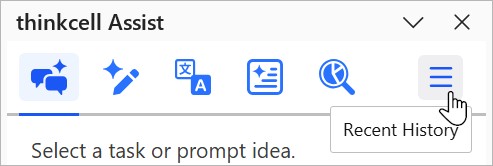
- On the thinkcell Assist side pane, select the Recent History
 tab.
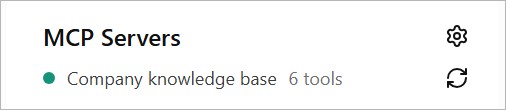
- At the bottom of the Recent History tab, confirm that the server appears in the MCP Servers list and check the server's status:
- A green status indicator means that the server is connected to Assist.
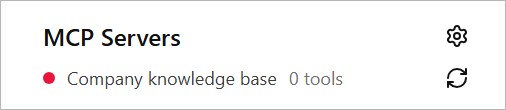
- A red status indicator means that there's a connection error (see Troubleshoot MCP server connections).
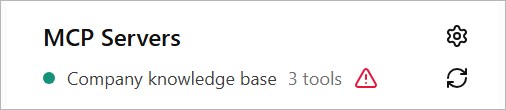
- A red warning icon beside the server's tool count means that Assist can't access one or more tools from the MCP server (see Troubleshoot MCP server tools).
- A green status indicator means that the server is connected to Assist.


To retry an MCP server connection and refresh the server's list of tools, beside the server's name, select Reconnect 
Troubleshoot MCP servers
To retry an MCP server connection and refresh the server's list of tools, open PowerPoint or Excel. On the ribbon, select Insert > thinkcell > Assist . At the bottom of the Recent History tab, beside the server's name, select Reconnect
For further troubleshooting, see the following topics:
Troubleshoot MCP server connections
If thinkcell Assist can't connect to an MCP server, an error message appears at the top of the thinkcell Assist side pane. On the Recent History tab, the server's status indicator turns red, and the error message appears when you hover over the server's name.

To troubleshoot an MCP server connection error, select the error message from the following list:
- Signing in to the MCP server at
URLdid not succeed. - The MCP server at
URLdid not answer in time. - The MCP server at
URLanswered, but the request failed. - The MCP server at
URLis running but refuses requests from https://app.prod.ai.think-cell.com. - Could not reach the MCP server at
URL. It may be offline, or the address may be wrong. - Your MCP servers offer more tools than thinkcell Assist can send. Please configure fewer of them.
If you still experience connection problems after trying the possible solutions for the error, contact our support team.
Signing in to the MCP server at URL did not succeed.
This error indicates that the user failed to sign into the MCP server.
This error has the following possible causes and solutions.
|
Possible causes |
Possible solutions |
|---|---|
|
Message detail: declined by the user The user denied the sign-in attempt. |
Start the sign-in process again. If the user trusts the application, they should allow the requested permissions. If the user doesn't trust the request, the MCP server administrator should confirm that the request is safe. |
|
Message detail: login not completed The sign-in attempt wasn't completed. Possible causes:
|
Try the following solutions in sequence:
|
|
Message detail: no client ID configured The MCP server is configured for sign-in, but its OAuth client ID is empty or missing. |
In your thinkcell configuration, make sure that you've specified the client ID (see Add MCP servers to thinkcell Assist). |
|
Possible causes |
Possible solutions |
|---|---|
|
Message detail: declined by the user The user denied the sign-in attempt. |
Start the sign-in process again. If the user trusts the application, they should allow the requested permissions. If the user doesn't trust the request, the MCP server administrator should confirm that the request is safe. |
|
Message detail: login not completed The sign-in attempt wasn't completed. Possible causes:
|
Try the following solutions in sequence:
|
|
Message detail: no client ID configured The MCP server is configured for sign-in, but its OAuth client ID is empty or missing. |
In your thinkcell configuration, make sure that you've specified the client ID (see Add MCP servers to thinkcell Assist). |
The MCP server at URL did not answer in time.
This error indicates that the MCP server did not respond within five seconds.
This error has the following possible causes and solutions.
|
Possible causes |
Possible solutions |
|---|---|
|
thinkcell didn't receive a response while connecting to the MCP server. The server must return a valid |
If the problem persists, the MCP server administrator should do the following:
|
|
thinkcell didn't receive a response to its request for the MCP server's tool list. The server must return a valid |
|
|
One of thinkcell's OAuth discovery requests did not return within five seconds. thinkcell may query several discovery endpoints. Each request must receive a response within five seconds, and at least one endpoint must return valid metadata. |
The MCP server administrator or authorization server provider should verify the server's compliance with the OAuth discovery requirements in the 2025-11-25 MCP specification, check the relevant server logs, and check the network access. |
|
Possible causes |
Possible solutions |
|---|---|
|
thinkcell didn't receive a response while connecting to the MCP server. The server must return a valid |
If the problem persists, the MCP server administrator should do the following:
|
|
thinkcell didn't receive a response to its request for the MCP server's tool list. The server must return a valid |
|
|
One of thinkcell's OAuth discovery requests did not return within five seconds. thinkcell may query several discovery endpoints. Each request must receive a response within five seconds, and at least one endpoint must return valid metadata. |
The MCP server administrator or authorization server provider should verify the server's compliance with the OAuth discovery requirements in the 2025-11-25 MCP specification, check the relevant server logs, and check the network access. |
The MCP server at URL answered, but the request failed.
This error indicates that the MCP server responded but thinkcell couldn't complete the request.
This error has the following possible causes and solutions.
|
Possible causes |
Possible solutions |
|---|---|
|
Example message details: Method not found, Connection closed JSON-RPC error: The server responded with a protocol-level failure instead of a successful result. |
Retry once. If the problem persists, do the following:
|
|
Message detail: Error POSTing to endpoint, followed by technical details HTTP error, such as 401, 404, or 405
|
|
|
Token endpoint error: The authorization server rejected the OAuth client's credentials or client authentication. Possible causes:
|
|
|
Message detail: Unauthorized thinkcell sent an incorrect API key to the MCP server. |
In your thinkcell configuration, enter the correct API key (see Add MCP servers to thinkcell Assist). |
|
Message detail: Invalid result for tools/list, followed by technical details The MCP server returned a Because the response is invalid, thinkcell Assist can't use any tools from the server. |
The MCP server administrator should inspect the raw |
|
Possible causes |
Possible solutions |
|---|---|
|
Example message details: Method not found, Connection closed JSON-RPC error: The server responded with a protocol-level failure instead of a successful result. |
Retry once. If the problem persists, do the following:
|
|
Message detail: Error POSTing to endpoint, followed by technical details HTTP error, such as 401, 404, or 405
|
|
|
Token endpoint error: The authorization server rejected the OAuth client's credentials or client authentication. Possible causes:
|
|
|
Message detail: Unauthorized thinkcell sent an incorrect API key to the MCP server. |
In your thinkcell configuration, enter the correct API key (see Add MCP servers to thinkcell Assist). |
|
Message detail: Invalid result for tools/list, followed by technical details The MCP server returned a Because the response is invalid, thinkcell Assist can't use any tools from the server. |
The MCP server administrator should inspect the raw |
The MCP server at URL is running but refuses requests from https://app.prod.ai.think-cell.com.
This error indicates that the browser blocked or could not complete a request from thinkcell. The browser did not report a specific cause.
To resolve this error, try the following solutions in sequence:
-
Verify the authentication method and credentials
In your thinkcell configuration, make sure that you've specified the correct authentication method for the MCP server (see Add MCP servers to thinkcell Assist). Confirm that the API key or OAuth access token has the permissions that the server requires.
-
Check the OAuth metadata and connectivity
Confirm that the authorization server publishes OAuth metadata at a standard discovery location. If the metadata is missing or published at a nonstandard location, the authorization server administrator or provider should enable or correct metadata publication.
Confirm that the authorization server and token endpoint are reachable over HTTPS. If the server and endpoint aren't reachable over HTTPS, the authorization server administrator or provider should resolve any server-side HTTPS problems.
If your organization's network restrictions prevent HTTPS access to the authorization server, its metadata URL, or its token endpoint, the network administrator should resolve the connectivity problem.
-
Check the CORS response headers
If one or more required CORS response headers are missing, the browser blocks the response from the MCP server. thinkcell Assist then reports that the server refuses requests from
https://app.prod.ai.think-cell.com.The MCP server administrator should confirm that they have correctly configured the required CORS response headers on the MCP server (see Configure CORS for your MCP server).
If the MCP server uses an OAuth authentication method, the authorization server administrator should confirm that they have correctly configured the required CORS response headers on the authorization server (see Configure CORS for your MCP server).
Could not reach the MCP server at URL. It may be offline, or the address may be wrong.
This error indicates that thinkcell couldn't reach the MCP server.
This error has the following possible causes and solutions.
|
Possible causes |
Possible solutions |
|---|---|
|
The MCP server is offline. |
Try again later. If the problem persists, the MCP server administrator should start or restart the server. |
|
DNS failure: The hostname in the URL could not be translated into an IP address, so thinkcell couldn't locate the MCP server. |
The MCP server administrator should verify that the hostname in the server URL is correct and resolves to the server from the end user’s network. Correct the DNS record or URL if necessary. If the MCP server administrator does not manage the relevant DNS zone, they should contact their network administrator. |
|
Wrong host or address: The URL points to the wrong host, or the host is not the MCP server that you intended to connect to. |
In your thinkcell configuration, make sure that you've entered the correct URL for the MCP server (see Add MCP servers to thinkcell Assist). |
|
The MCP server or network did not respond within five seconds. |
Check that the MCP server is reachable from the end user's machine and that the relevant network, proxy, firewall, TLS, and VPN settings permit the connection. The MCP server administrator or provider should check the server's response time and logs. |
|
Possible causes |
Possible solutions |
|---|---|
|
The MCP server is offline. |
Try again later. If the problem persists, the MCP server administrator should start or restart the server. |
|
DNS failure: The hostname in the URL could not be translated into an IP address, so thinkcell couldn't locate the MCP server. |
The MCP server administrator should verify that the hostname in the server URL is correct and resolves to the server from the end user’s network. Correct the DNS record or URL if necessary. If the MCP server administrator does not manage the relevant DNS zone, they should contact their network administrator. |
|
Wrong host or address: The URL points to the wrong host, or the host is not the MCP server that you intended to connect to. |
In your thinkcell configuration, make sure that you've entered the correct URL for the MCP server (see Add MCP servers to thinkcell Assist). |
|
The MCP server or network did not respond within five seconds. |
Check that the MCP server is reachable from the end user's machine and that the relevant network, proxy, firewall, TLS, and VPN settings permit the connection. The MCP server administrator or provider should check the server's response time and logs. |
Your MCP servers offer more tools than thinkcell Assist can send. Please configure fewer of them.
This error indicates that the number of tools and the size of tool descriptions from all connected MCP servers exceed thinkcell Assist's 10 MB payload limit.
To resolve this error, try the following:
- Disconnect MCP servers that users don't need.
- MCP server administrators should configure servers to expose only the tools that users need.
- MCP server administrators should shorten overly long tool descriptions.
Troubleshoot MCP server tools
If thinkcell Assist can't access one or more tools from an MCP server, a warning icon appears beside the server's tool count on the Recent History tab. When you hover over the warning icon, a description of the error appears.

To troubleshoot an MCP server tool error, select the error message from the following list:
- The MCP tool
NAMEis too long and can't be used. - The MCP tool
NAMEhas the same name as a tool ofSERVERand can't be used. - The MCP tool
NAMEcan't be used. - The MCP tool (unnamed) can't be used.
If you still experience problems with the tool after trying the possible solutions for the error, contact our support team.
The MCP tool NAME is too long and can't be used.
This error indicates that thinkcell Assist's name for the tool exceeds 128 characters.
thinkcell Assist names MCP server tools using the format mcp_server-name__tool-name, where server-name is the server's name in your thinkcell configuration and tool-name is the tool's name in the tool definition. If the Assist tool name exceeds 128 characters, Assist can't use the tool.
To resolve this error, apply one or both of the following solutions so that the Assist tool name contains 128 characters or less:
- In your thinkcell configuration, shorten the name of the server that exposes the tool (see Add MCP servers to thinkcell Assist).
- In the tool definition, the MCP server administrator should shorten the tool name.
The MCP tool NAME has the same name as a tool of SERVER and can't be used.
This error indicates that thinkcell Assist has generated a tool name that's already in use.
thinkcell Assist names MCP server tools using the format mcp_server-name__tool-name, where server-name is the server's name in your thinkcell configuration parameters and tool-name is the tool's name in the tool definition. In server-name and tool-name, Assist uses only lowercase letters and converts characters other than letters, digits, and hyphens (-) into underscores (_).
For example, if a server named Sales/Data exposes a tool named lookup, the Assist tool name would be mcp_sales_data__lookup. If you connect an additional server named Sales data that exposes a tool named lookup, the Assist tool name would also be mcp_sales_data__lookup.
The tool to which thinkcell Assist first assigned the name keeps the name and remains connected to Assist. Assist disconnects the tool with the duplicate name. Assist first assigns names to tools exposed by servers that you connected via thinkcell configuration parameters, then to tools exposed by servers that users connected via the Assist side pane.
To resolve this error, apply one or both of the following solutions so that thinkcell Assist generates a unique name for each tool:
- In your thinkcell configuration, change the name of the server that exposes the tool (see Add MCP servers to thinkcell Assist).
- In the tool definition, the MCP server administrator should change the tool name.
The MCP tool NAME can't be used.
This error indicates that the tool is unavailable.
This error has the following possible causes and solutions.
|
Possible causes |
Possible solutions |
|---|---|
|
The name contains a character other than a letter, digit, underscore (_), or hyphen (-). |
In the tool definition, the MCP server administrator should rename the tool using only permitted characters. |
|
The name of a required parameter contains invisible characters—for example, control characters, zero-width spaces, and text direction marks. |
In the tool definition, the MCP server administrator should remove invisible characters from the parameter name. |
|
Unresolved |
In the tool's raw |
|
Possible causes |
Possible solutions |
|---|---|
|
The name contains a character other than a letter, digit, underscore (_), or hyphen (-). |
In the tool definition, the MCP server administrator should rename the tool using only permitted characters. |
|
The name of a required parameter contains invisible characters—for example, control characters, zero-width spaces, and text direction marks. |
In the tool definition, the MCP server administrator should remove invisible characters from the parameter name. |
|
Unresolved |
In the tool's raw |
The MCP tool (unnamed) can't be used.
This error indicates that the tool name in the tool definition is empty.
To resolve this error, in the name field of the tool definition, the MCP server administrator should enter a tool name.
Need to troubleshoot?
Check our knowledge base