Easily manage project timelines in PowerPoint
Aug 12, 2025 - 6 min read

Behind the slides is the go-to resource designed to help you work smarter with PowerPoint. Sign up on LinkedIn to get each edition delivered to your inbox.
This month, we look at how you can expertly manage projects from start to finish directly within PowerPoint, by visualizing timelines, mapping out dependencies, and keeping everyone aligned throughout the entire process. While many turn to Excel to create timelines and Gantt charts for their projects, we focus on how you can make a timeline as part of your larger PowerPoint presentation.
Enjoy the read!
Use cases for timelines in PowerPoint
Anyone who has been involved in a work project knows how important having a central overview of the project is. To successfully execute a project from start to finish, you need a reliable source of truth that everyone involved can refer to at all times. This is even more critical for complex projects that involve multiple stakeholders spread across numerous teams.
When creating a timeline in PowerPoint, it is important to first consider the context and purpose behind it.
Types of timelines
You might be kicking off a project with a simple project timeline and want to give your audience a high-level overview of key phases and the duration of the project, or you might choose a project roadmap to present a strategy with clear goals. Alternatively, you might want to communicate the progress of a project by giving a status update. These conditions determine the type of timeline you’d use.
Illustrative timeline
Illustrative or milestone timelines give a high-level overview of the project and are commonly designed for one-off use. They are employed during a project kick-off, for instance, to define critical project stages and these PowerPoint timelines rely on custom shapes or drawings. They are also commonly used to show important milestones of a project.
Planning timeline
Planning timelines focus on the details including start and finish points, and durations of individual events. They are suitable to be used at the beginning of a project to map out the different stages and requirements. A more detailed project timeline, also known as Gantt chart, provides a structured view of the entire project schedule. It is essential for tracking progress and managing resources during project execution, by having a clear breakdown of tasks, durations, dependencies, and deadlines.
How to use PowerPoint to create timelines
Illustrative timelines can be built manually using shapes and text boxes. This method allows for flexibility in design but requires hands-on effort. Alternatively, PowerPoint offers a range of illustrations called SmartArt that can be used to create basic event timeline, milestone timeline, or process timeline.

Another way to create a timeline on PowerPoint is to use the in-built templates that can be adapted to fit your needs. While these templates are useful to get started, they tend to have limited flexibility. If you want to make any changes or add more elements, you often have to resize and move around objects and may end up essentially rebuilding the entire template. To use PowerPoint’s in-built timeline templates, select ‘New’ from the File menu and type ‘timeline’ into the search field.
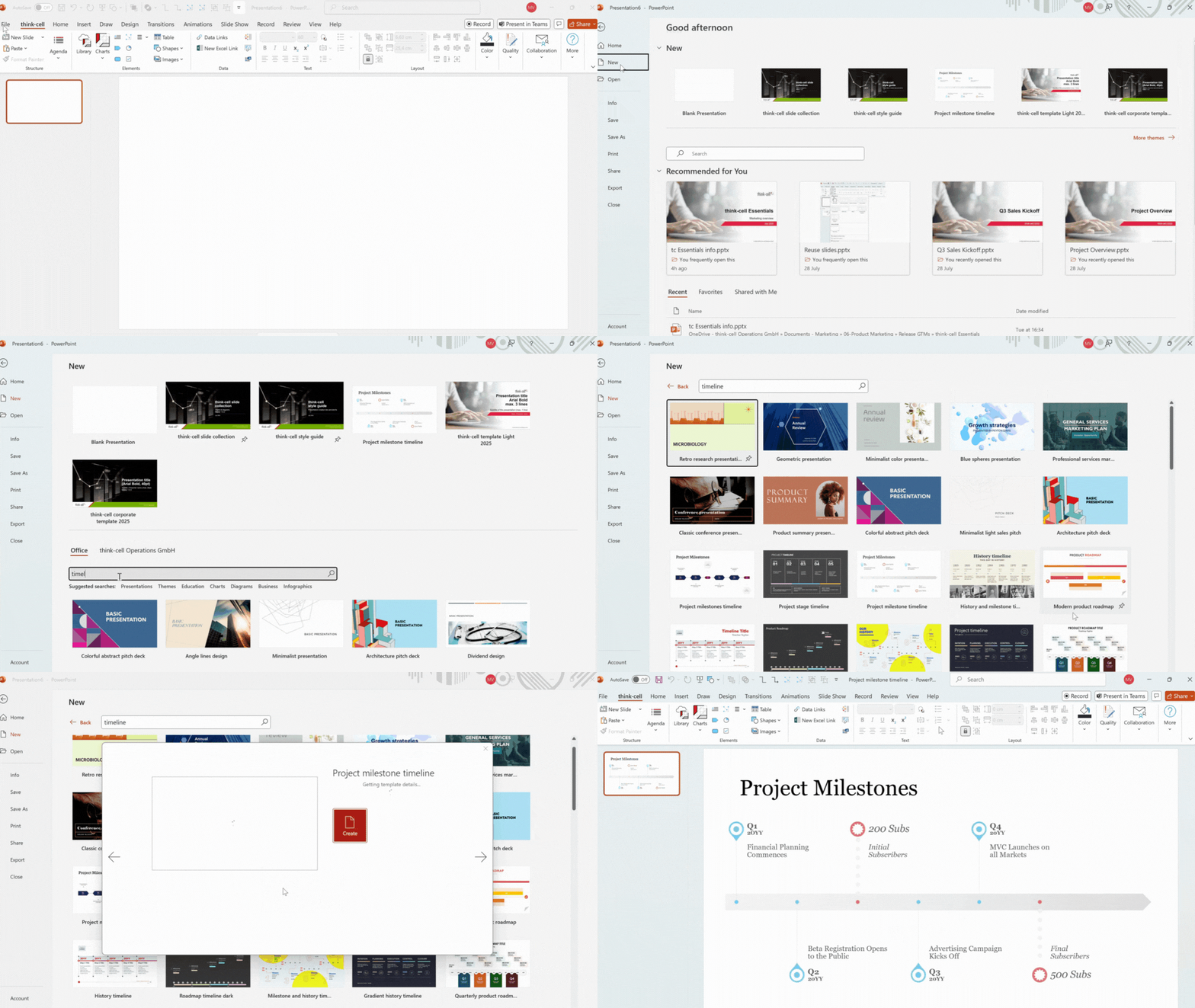
Project timelines, also known as Gantt charts and meant for detailed project management with dependencies, dates, and task tracking, typically goes beyond PowerPoint’s native capabilities. To create Gantt charts, you generally need an add-in or an external tool to produce something that is functional and linked to an underlying calendar, making updates easier to manage.
Create Gantt charts in PowerPoint
PowerPoint doesn’t have native capabilities for a data-driven calendar, which is why an add-in becomes essential for building more dynamic timelines.
With thinkcell, you can easily insert a Gantt chart into your slide:
- On the PowerPoint ribbon, click on the thinkcell tab.
- Click Charts and select Gantt/Timeline from the drop-down.
- Position the chart on your slide.
- In the datasheet that opens, fill in your activities, start and end dates and specific milestones. You can add a separate column for responsible owners and another for remarks.
- Right click on each activity to add a new bar and connect them to their anchor points. This way, the bars will be up to date even when the dates in the Excel datasheet change at a later point.
Why you should create Gantt charts with thinkcell
Using a data-driven Gantt chart makes it significantly easier to maintain and update your project plan. When you need to provide regular updates to management, implementation teams, or other stakeholders, a dynamic Gantt chart ensures that your timelines stay aligned with project progress. Without this, you'll likely waste time before every update meeting manually adjusting timelines.
Designed for busy project teams, thinkcell Gantt charts make it easy to keep your timelines accurate, up-to-date, and easy to understand.
Effortless data sync with Excel linking
Keep your Gantt chart accurate by linking it directly to your project data in Excel. This ensures that any change in your source data will instantly be reflected in the chart, eliminating errors and maintaining trust with stakeholders.
Anchored bars for precise dependencies
Projects rarely run in a straight line. With the help of anchored bars that link task dependencies to critical milestones, ensuring that the Gantt chart intelligently adjusts even when deadlines shift.
Clear ownership with consolidated responsible rows
Simplify accountability by assigning a single row in the responsible column to multiple related activities. This provides immediate clarity on ownership without cluttering your Gantt chart, making it easy for everyone to see who is driving each major workstream.
Don’t forget to subscribe to this newsletter so you never miss an update! We invite you to also follow thinkcell on LinkedIn.
Build credible, boardroom-ready slides with AI
- Generate professional slides from scratch and boardroom-ready charts from verified data sources.
- Never leave your workflow: create, edit, analyze and translate from one interface in PowerPoint and Excel.
- Try for free, no credit card required and no cancellation necessary.